irssi
irssi is a program with which to connect to an Internet relay chat (IRC) server liked our Grenzland chat. This is where you can chat with other people.
irssi uses a text user interface (TUI) so it works inside a terminal. In addition to that, you can run it
inside tmux on grenzland.club in order to have a persistent connection.
See the tmux + irssi tutorial for more.
This is a super short version of the official new user guide.
When you start irssi it uses the config file from /etc/irssi.conf.
It automatically connects you to the grenzland.club server and joins the #welcome channel.
If you’re running irsii on a different computer, define the network, add a server, and connect as follows:
/network add grenzland
/server add -auto -network grenzland -tls irc.grenzland.club 6697
/connect grenzland
/join #welcome
When you connect, you’re looking at the window with the server output.
The #welcome channel has its separate window.
Note that this use of “window” is different from what a graphical user interface (GUI) would use!
Here, a “window” is more like a tab.
To switch between the windows, use the Alt key and numbers, like Alt-1 and Alt-2, or use Alt and the left and right arrow keys.
Use Page Up and Page Down to look at the output in a window.
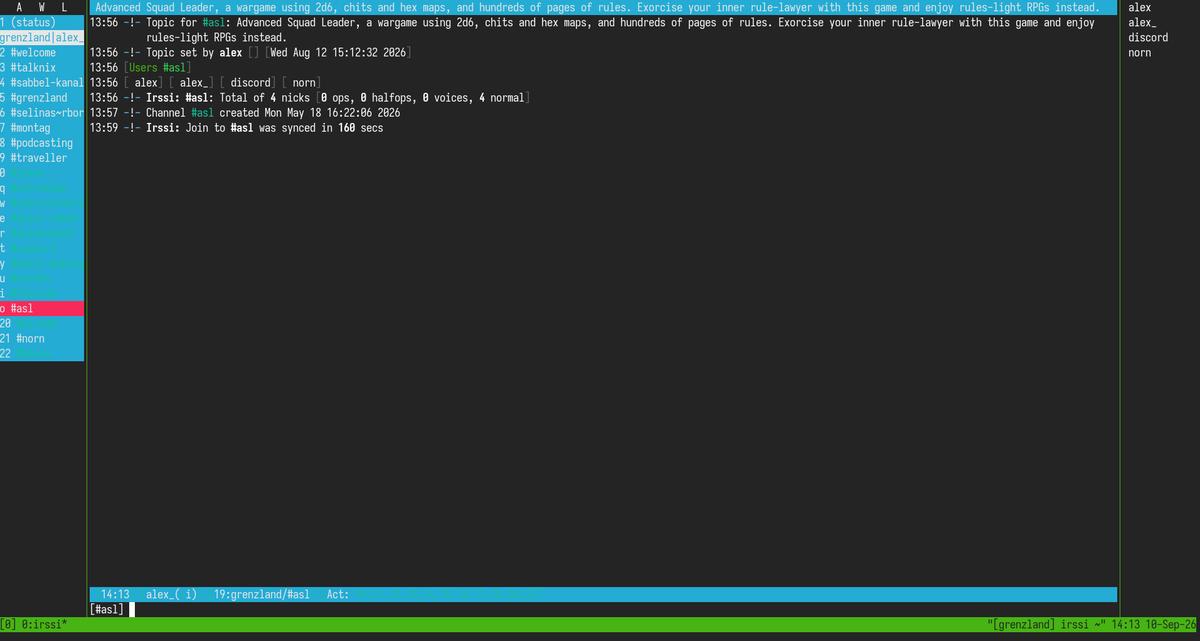
The status bar at the bottom tells you your nick, the window number, the server, and the channel, if available. It also shows you which window number has new activity.
Any text you type is sent to the target of the current window.
Commands to irssi start with a slash. Therefore ordinary text you send cannot start with a slash.
A typical commands would be /help or /quit.
If commands print output, that output is usually sent to the server window. Use Alt-1 to switch to it if you’ve issued the command in some other window.
Alt-a switches to the most active window.
/list shows you all the channels available.
/join <#channel> joins a channel; if the channel doesn’t exist, it is created. Perfect for break-out sessions.
/leave leaves the current channel.
/query <nick> starts a one-on-one conversation with somebody.
/msg <nick> <text> sends a message to somebody and starts a one-on-one conversation.
/ignore <nick> mutes a nick – but we’d actually prefer if you contacted one of the admins (alex, kyonshi or lkh) instead so that we can figure out what to do.
Auto-join
If you want to reconnect to your favourite channels when irssi is started, you have to setup auto-joins.
Typically you first join a channel. #sabbel-kanal is the chit chat channel. Join it:
/join #sabbel-kanal
If you like what you see, set up auto-joining:
/channel add -auto #sabbel-kanal grenzland
To give it up again:
/channel modify -noauto #sabbel-kanal grenzland
If you’re not using irssi from grenzland.club, you’ll need to set up auto-joining for the #welcome channel.
/channel add -auto #welcome grenzland
Muting status messages
Status messages are the messages announcing people joining and parting channels, being away from the keyboard and back again, quitting the server, and so on. If you’re bothered by these messages, you can mute them:
/join * joins parts quit leave modes nick
The idea is that you’ll see the people in your channels using a sidebar (see below).
Automatic configuration
irssi persists configurations you make in the ~/.irssi/config file. Thus, often you just need to run commands just once. irssi will remember the configuration and so you won’t have to rerun these commands next time you start irssi.
To save the current configuration:
/save
Scripts
irssi is configured using a plethora of scripts.
This page explain how to set up some of them.
Some of these require irssi to run inside tmux.
See the tmux + irssi tutorial for more.
There is a a way to install scripts from inside irssi.
These scripts end up in the folder ~/.irssi/scripts.
For them to run every time you start irssi, they need to be moved to a different folder.
Therefore, we might as well install them directly into the correct folder.
Check Irssi Scripts to find more scripts.
Installing scripts directly
Create the autorun directory for script that should always run:
mkdir --parents ~/.irssi/scripts/autorun
If your distribution comes with an irssi-scripts package, install it and link the scripts into this directory:
cd ~/.irssi/scripts/autorun
ln --symbolic /usr/share/irssi/scripts/nickcolor_expando.pl .
ln --symbolic /usr/share/irssi/scripts/adv_windowlist.pl .
ln --symbolic /usr/share/irssi/scripts/ .
Alternatively, download them:
cd ~/.irssi/scripts/autorun
curl --remote-name https://scripts.irssi.org/scripts/nickcolor_expando.pl
curl --remote-name https://scripts.irssi.org/scripts/adv_windowlist.pl
curl --remote-name https://scripts.irssi.org/scripts/tmux-nicklist-portable.pl
These scripts provide colourised nicks, a list of windows on the left and a list of nicks on the right if you are looking at a channel. These last two scripts rely on the fact that tmux can create additional panes for you. Therefore, even if you run irssi on your own machine, you still need to use tmux for these two scripts to work.
nickcolor_expando.pl provides code that you have to use in a FORMAT:
/format pubmsg {pubmsgnick $2 {pubnick $nickcolor$0}}$1
/save
Once you do this, the format is saved on your ~/.irssi/default.theme file and you don’t have to redo it.
Other chat networks
You can connect to other networks. Some come preconfigured, like Libera Chat. This is where people talk about free software.
/connect liberachat
Now you’re connected to two servers. Use Alt 1 to switch to the server window and use Ctrl X to switch between the various servers.
Switch to the appropriate server before issuing the /join <#channel> command as every server maintains their own list of channels.
Use /disconnect to disconnect from the current server.
On Libera Chat, you need to identify with NickServ, a service that authenticates users.
Once you have an account, this particular network allows you to use SASL to authenticate instead.
For this to work, you need to modify the configuration of the liberachat network:
/network modify -sasl_username alex -sasl_password *secret* -sasl_mechanism PLAIN liberachat
If you want to connect to a server that does not belong to any of the preconfigured networks, you’ll have to set it up yourself.
To list the preconfigured networks:
/network
To add a new network named casa with a single server called irc.example.com that requires SASL, specify the credentials with the NETWORK command, as above. For example:
/network add -sasl_username alex -sasl_password *secret* -sasl_mechanism PLAIN casa
/server add -auto -network casa -tls irc.example.com 6697
/connect casa
/join #home
/channel add -auto #home casa
To stop auto-connecting:
/server modify -noauto casa